
Open Raadsinformatie verbinden
Dieser Konnektor gibt Claude Zugang zu den öffentlichen Entscheidungsunterlagen von 310 Gemeinden, 8 Provinzen und 13 Wasserverbänden: etwa 5,6 Millionen Dokumente. Wählen Sie unten, wie Sie Claude anbinden.
Claude Mit Claude verbinden
Mit Claude Desktop verbinden empfohlen
Recommended for most users. Open Settings → Connectors and add a custom connector.
Einen benutzerdefinierten Connector in Claude Desktop hinzufügen
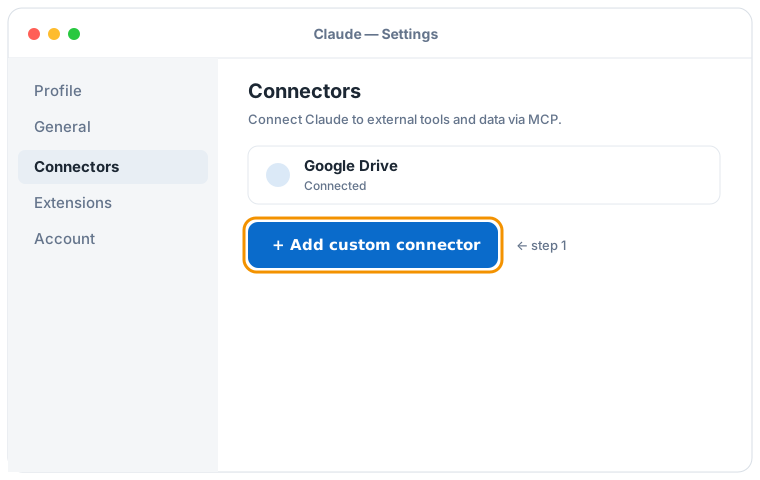

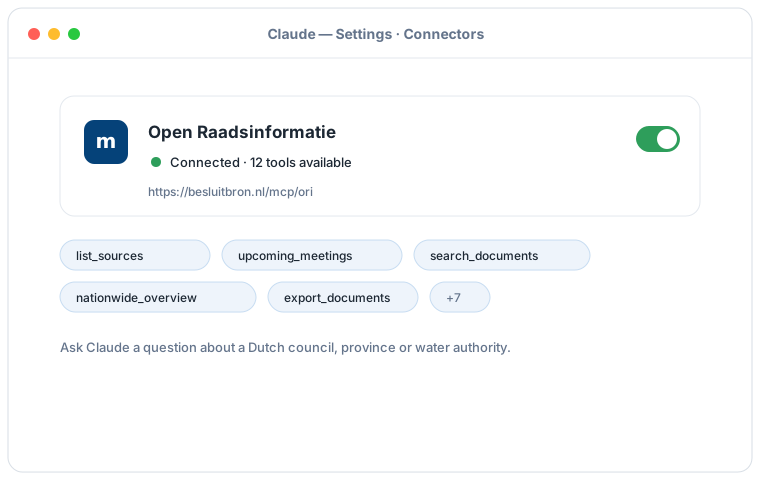
Schematische Darstellung des Claude-Desktop-Ablaufs; die genauen Bildschirme können je nach Version abweichen. Klicken Sie auf eine Abbildung, um sie zu vergrößern.
Fügen Sie einen benutzerdefinierten Connector mit dieser URL hinzu:
https://besluitbron.nl/mcp/ori
Es ist keine Authentifizierung erforderlich.
Diese Adresse ist die dieser Installation. Eine Organisation, die den Dienst selbst betreibt, verwendet ihre eigene Adresse. Selbst betreiben.
Mit Claude Code verbinden
Run a single command in the terminal:
claude mcp add --transport http ori https://besluitbron.nl/mcp/ori
Mit claude.ai verbinden
Add a custom connector under Settings → Connectors with the same URL.
https://besluitbron.nl/mcp/ori
ChatGPT Mit ChatGPT verbinden
ChatGPT can use BesluitBron too. The route differs from Claude's: with Claude you add an ordinary custom connector, with ChatGPT it sits behind a developer setting.
Needed: ChatGPT in a web browser and a paid plan on which developer mode is available. In a Business or Enterprise workspace an administrator has to allow it first, under Workspace Settings → Permissions & Roles → Connected Data. OpenAI states this mode is meant for developers.
- In ChatGPT, open your profile picture at the top right and go to Settings.
- Go to Connectors (called Apps in some versions) and open Advanced settings at the bottom.
- Entwicklermodus einschalten.
- Under Connectors, add a remote MCP server and paste the URL below. For authentication, choose none.
Fügen Sie einen benutzerdefinierten Connector mit dieser URL hinzu:
https://besluitbron.nl/mcp/ori
Es ist keine Authentifizierung erforderlich.
OpenAI changes these screens regularly and the names differ per version and plan; if your screen looks different, see the Hilfecenter von OpenAI.
Beispielfragen
- "What is on the agenda of the upcoming Utrecht council meeting?"
- "Find the Ede documents about the heat network from recent years and summarise the positions."
- "What happened earlier in this dossier, and are there contradictions between the documents?"
- "Give a nationwide picture of nitrogen policy: which authorities are most active and what happened per year?"
- "Export all documents about asylum reception since 2025 as CSV." (returns a download link, up to thousands of documents)
Gut zu wissen
- Feel free to ask about upcoming meetings, if none show up the source data is still catching up, and Claude will show the most recent meetings instead.
- Ask Claude for "all" results or a nationwide overview; Claude pages through more results and, for large research, can make a full CSV export with a download link.
- Ask Claude for the source of any answer; you get the original link at the municipality, province or water authority per document, so you can verify everything yourself.