
Connect OpenBesluitvorming
OpenBesluitvorming.nl is the successor to Open Raadsinformatie and harvests the same municipalities, provinces and water authorities. This connector gives Claude access to that material, with one thing its predecessor never had: motions with the vote of every individual council member.
What this connector can and cannot do
- CAN: motions and amendments as their own entity type, with the outcome (carried, rejected, withdrawn, held over) and, for part of the sources, the vote of every council member by name and party.
- CAN: recordings of meetings, with stream, download and player links plus a chapter per agenda item with its start and end time, so a citation can point at the minute a subject was discussed. The platform holds no transcript.
- CAN: upcoming meetings, reliably nationwide. Asked per source it depends on that source, so the answer always states which period the platform actually served.
- CAN: search for an exact phrase. Two or more words between double quotes have to stand next to each other and in that order. Since 2026-08-16; before that, quotation marks did nothing.
- CAN: filter by date. The platform has filtered in the index itself since 2026-08-14, so an empty answer for a period means the index holds nothing for it, not that too little was searched.
- CANNOT: page indefinitely. The platform scans at most 6,000 index rows per search, so a long result list ends sooner than the reported total suggests. Follow next_offset until it is absent and make the question more specific instead of paging deeper.
Claude Connecting with Claude
Connect with Claude Desktop recommended
Recommended for most users. Open Settings → Connectors and add a custom connector.
Add a custom connector in Claude Desktop
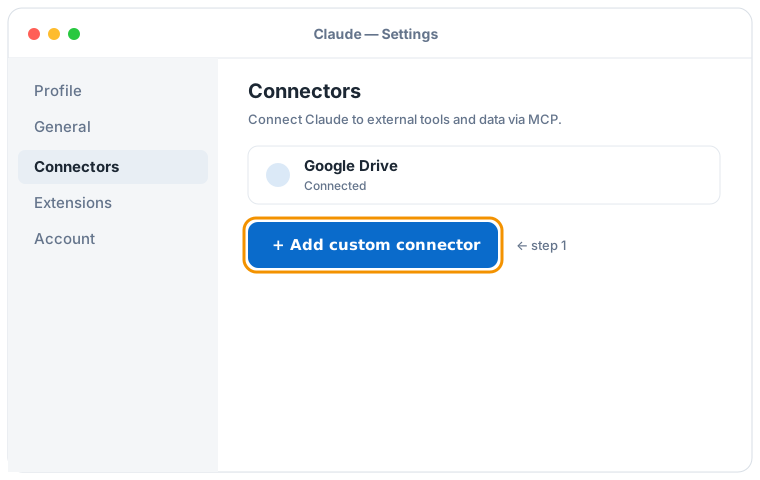

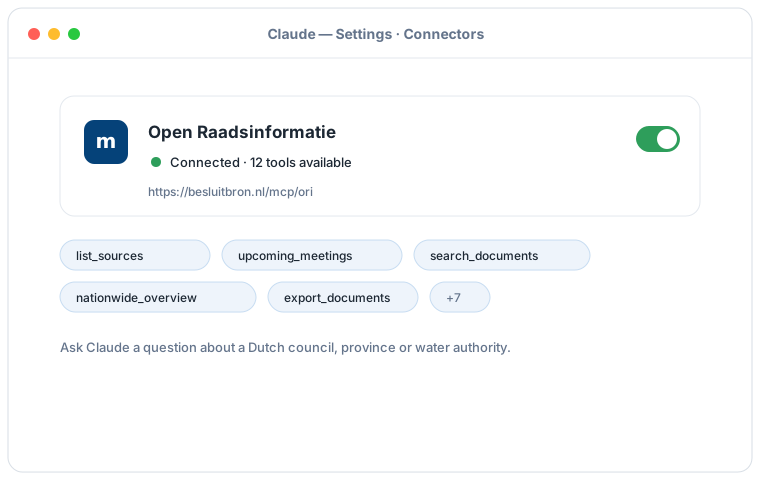
Schematic illustration of the Claude Desktop flow; the exact screens may vary per version. Click an illustration to enlarge it.
Add a custom connector with this URL:
https://besluitbron.nl/mcp/openbesluitvorming/v1
No authentication is required.
This address is the one of this installation. An organisation running the service itself uses its own address. Run it yourself.
Connect with Claude Code
Run a single command in the terminal:
claude mcp add --transport http woozi https://besluitbron.nl/mcp/openbesluitvorming/v1
Connect with claude.ai
Add a custom connector under Settings → Connectors with the same URL.
https://besluitbron.nl/mcp/openbesluitvorming/v1
ChatGPT Connecting with ChatGPT
ChatGPT can use BesluitBron too. The route differs from Claude's: with Claude you add an ordinary custom connector, with ChatGPT it sits behind a developer setting.
Needed: ChatGPT in a web browser and a paid plan on which developer mode is available. In a Business or Enterprise workspace an administrator has to allow it first, under Workspace Settings → Permissions & Roles → Connected Data. OpenAI states this mode is meant for developers.
- In ChatGPT, open your profile picture at the top right and go to Settings.
- Go to Connectors (called Apps in some versions) and open Advanced settings at the bottom.
- Switch on Developer mode.
- Under Connectors, add a remote MCP server and paste the URL below. For authentication, choose none.
Add a custom connector with this URL:
https://besluitbron.nl/mcp/openbesluitvorming/v1
No authentication is required.
OpenAI changes these screens regularly and the names differ per version and plan; if your screen looks different, see the OpenAI Help Center.
Example prompts
- “How did the council of Aalsmeer vote on the motions about housing? Give the votes per party and name the members who voted against their own party.”
- “Find motions about youth care in Amstelveen and give the outcome of each with its tally.”
- “Compare Soest, Bunnik and Culemborg on the subject of asylum reception: what did they decide, and when?”
- “Build a dossier on the budget of Utrecht: which documents, which decisions, and what is still open?”