
Connect OpenTK
OpenTK searches the TEXT of documents rather than only their titles. It downloads the papers of the Tweede Kamer, extracts their text (scans through OCR) and indexes it, and does the same for Woo publications by 616 government bodies and for consultations on draft legislation. On six measured terms, 86 to 99% of the hits carry the term in the body rather than in the title.
Whose data this is
This connector reads OpenTK, an independent open-source service by bert hubert, built on the open data of the Tweede Kamer. It is not an official register and not a service of the Kamer itself. The site is opentk.nl and the software (tkconv) is at github.com/berthubert/tkconv.
What this connector can and cannot do
- Full-text search, with quoted phrases, prefixes, AND, OR, NOT and NEAR. A search takes 0,3 to 0,9 seconds. The text of any hit can be retrieved, including scans repaired with OCR.
- Three corpora at once: parliamentary papers and verbatim records, Woo publications from open.overheid.nl, and documents from internetconsultatie.nl. No other connector here covers the last two.
- A search returns at most 280 hits, ordered by when they were indexed rather than by relevance, with no total. A hit count is therefore never a document count: narrow the query rather than paging, because what falls outside that window cannot be reached.
- Every hit says which corpus it comes from. A Woo publication by a ministry is not a decision of parliament; blurring the two is wrong even with correct quotations.
- The metadata is one to three minutes behind the Kamer. The TEXT of a brand new paper lags further, and the platform does not report by how much.
Claude Connecting with Claude
Connect with Claude Desktop recommended
Recommended for most users. Open Settings → Connectors and add a custom connector.
Add a custom connector in Claude Desktop
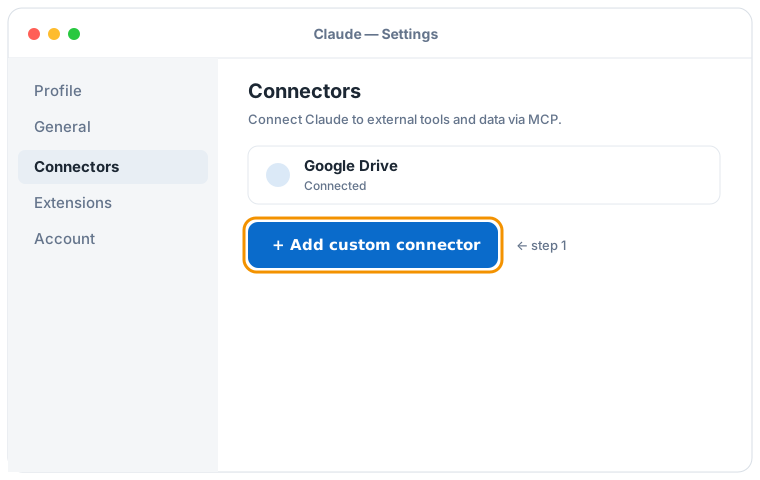

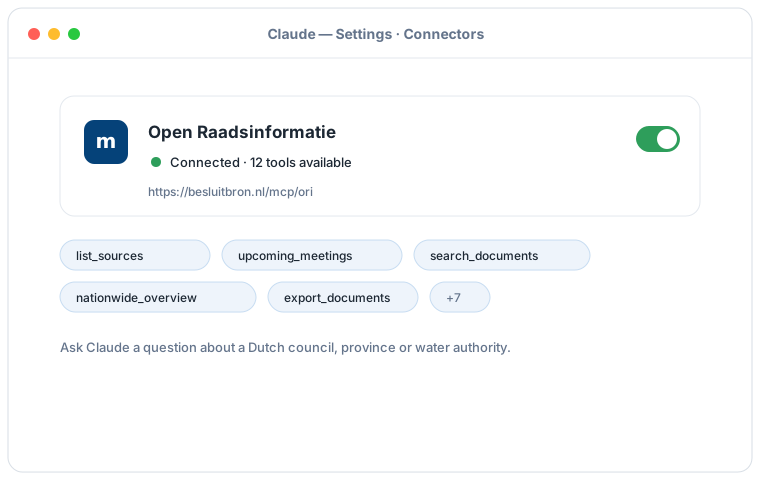
Schematic illustration of the Claude Desktop flow; the exact screens may vary per version. Click an illustration to enlarge it.
Add a custom connector with this URL:
https://besluitbron.nl/mcp/opentk/v1
No authentication is required.
This address is the one of this installation. An organisation running the service itself uses its own address. Run it yourself.
Connect with Claude Code
Run a single command in the terminal:
claude mcp add --transport http opentk https://besluitbron.nl/mcp/opentk/v1
Connect with claude.ai
Add a custom connector under Settings → Connectors with the same URL.
https://besluitbron.nl/mcp/opentk/v1
ChatGPT Connecting with ChatGPT
ChatGPT can use BesluitBron too. The route differs from Claude's: with Claude you add an ordinary custom connector, with ChatGPT it sits behind a developer setting.
Needed: ChatGPT in a web browser and a paid plan on which developer mode is available. In a Business or Enterprise workspace an administrator has to allow it first, under Workspace Settings → Permissions & Roles → Connected Data. OpenAI states this mode is meant for developers.
- In ChatGPT, open your profile picture at the top right and go to Settings.
- Go to Connectors (called Apps in some versions) and open Advanced settings at the bottom.
- Switch on Developer mode.
- Under Connectors, add a remote MCP server and paste the URL below. For authentication, choose none.
Add a custom connector with this URL:
https://besluitbron.nl/mcp/opentk/v1
No authentication is required.
OpenAI changes these screens regularly and the names differ per version and plan; if your screen looks different, see the OpenAI Help Center.