
Connect Tweede Kamer
The Tweede Kamer publishes its own archive: every motion, every decision, every vote per faction, and the verbatim record of every debate. This connector makes that answerable. ORI and OpenBesluitvorming cover municipalities, provinces and water authorities; this one covers the national parliament.
What this connector can and cannot do
- Search looks at the TITLE of a paper only. This platform has no full-text search, and on a measured sample title search missed 59 to 100 percent of the papers that mention a term in their body. Treat a hit as a candidate, then read the paper.
- Searching the CONTENT of papers is possible, but it does not come from the Tweede Kamer: it is provided by opentk.nl, an independent open-source service by bert hubert that downloads the Kamer's papers, extracts their text (scans through OCR) and indexes it. Every answer from the tool names that origin; the papers themselves remain the Kamer's.
- The text of a paper exists for about a quarter of them: roughly half since 2021, almost none before 2018. Where it is absent the connector returns nothing rather than an unreliable PDF extraction.
- Votes per faction, with seat counts that total 150. Votes cast by mistake are recorded as such, which is how a motion can pass against the intent of the chamber.
- Verbatim records of the sittings, with each speaker’s name, faction and the platform’s own person identifier, so a quote can be attributed.
- The cabinet’s position on a motion (Ontraden, Oordeel Kamer). No other Dutch source publishes that as data.
Claude Connecting with Claude
Connect with Claude Desktop recommended
Recommended for most users. Open Settings → Connectors and add a custom connector.
Add a custom connector in Claude Desktop
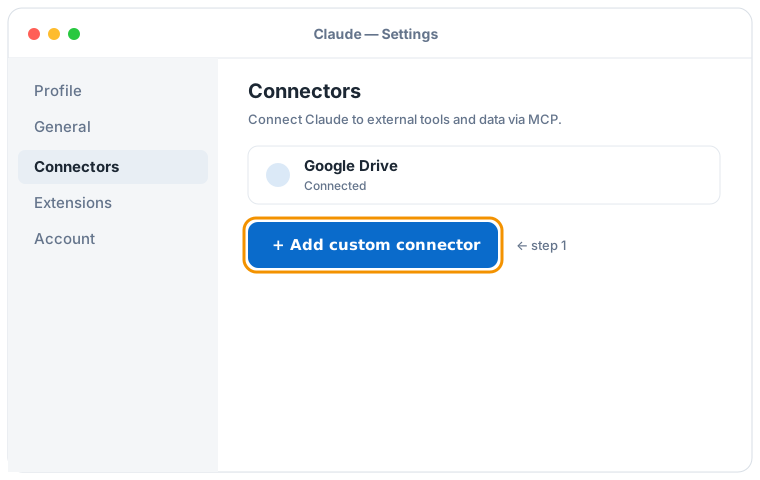

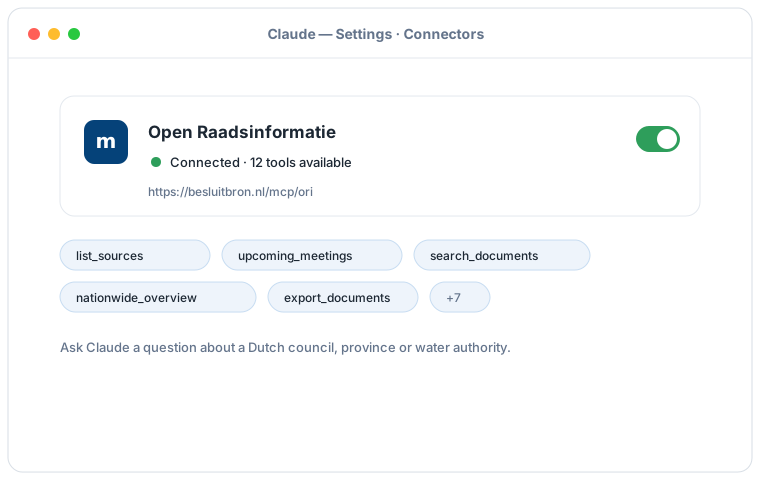
Schematic illustration of the Claude Desktop flow; the exact screens may vary per version. Click an illustration to enlarge it.
Add a custom connector with this URL:
https://besluitbron.nl/mcp/tweedekamer/v1
No authentication is required.
This address is the one of this installation. An organisation running the service itself uses its own address. Run it yourself.
Connect with Claude Code
Run a single command in the terminal:
claude mcp add --transport http tk https://besluitbron.nl/mcp/tweedekamer/v1
Connect with claude.ai
Add a custom connector under Settings → Connectors with the same URL.
https://besluitbron.nl/mcp/tweedekamer/v1
ChatGPT Connecting with ChatGPT
ChatGPT can use BesluitBron too. The route differs from Claude's: with Claude you add an ordinary custom connector, with ChatGPT it sits behind a developer setting.
Needed: ChatGPT in a web browser and a paid plan on which developer mode is available. In a Business or Enterprise workspace an administrator has to allow it first, under Workspace Settings → Permissions & Roles → Connected Data. OpenAI states this mode is meant for developers.
- In ChatGPT, open your profile picture at the top right and go to Settings.
- Go to Connectors (called Apps in some versions) and open Advanced settings at the bottom.
- Switch on Developer mode.
- Under Connectors, add a remote MCP server and paste the URL below. For authentication, choose none.
Add a custom connector with this URL:
https://besluitbron.nl/mcp/tweedekamer/v1
No authentication is required.
OpenAI changes these screens regularly and the names differ per version and plan; if your screen looks different, see the OpenAI Help Center.